CopyPouch is a clipboard history tool you open only when you need it.
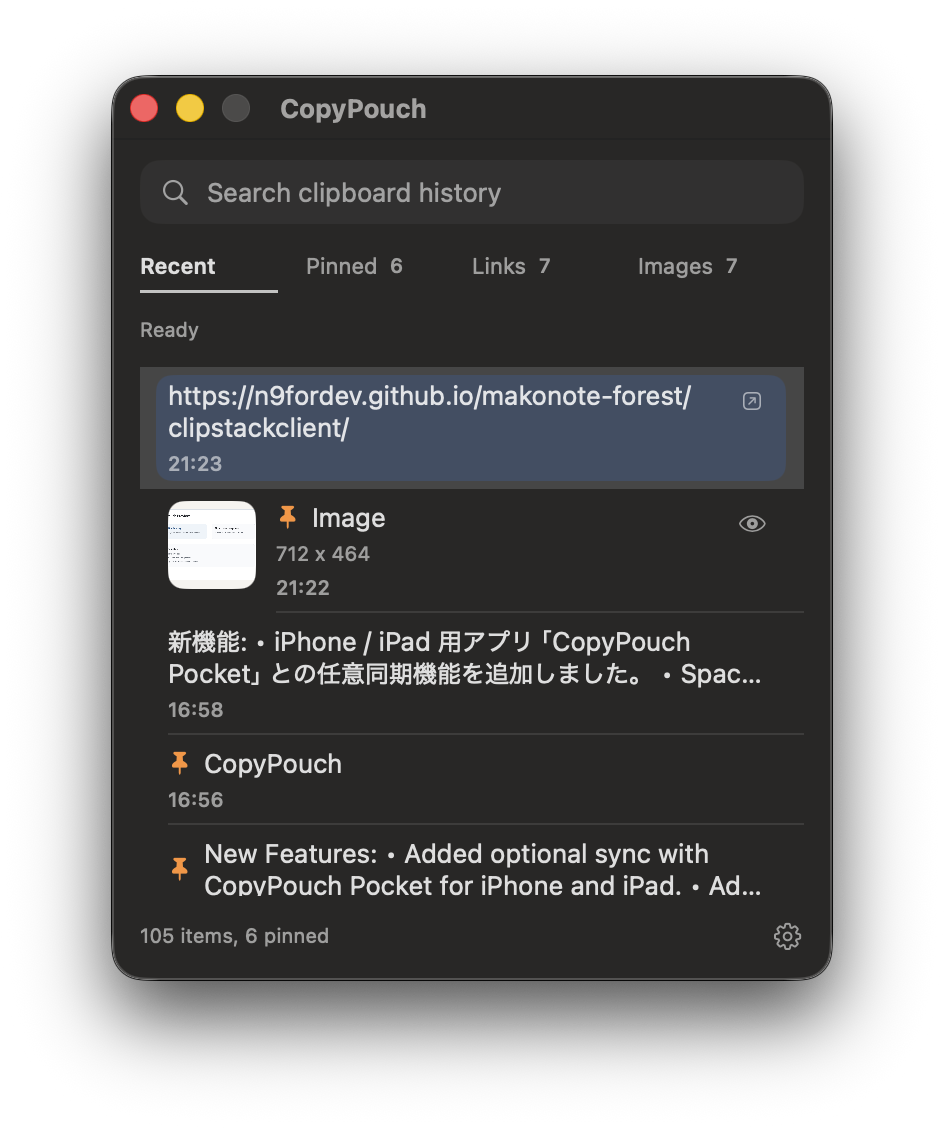
It stays in the menu bar most of the time. When needed, open the panel and reuse copied text, links, or images without breaking your current workflow.
How to launch CopyPouch
- Click the menu bar icon
- Open the panel with the global hotkey

The default hotkey is Control + Option + Command + V.
You can change it later from the settings window.
Basic actions
- Click an item to reuse it
- Text, links, and images are copied back to the clipboard for quick paste
- Paste into the active app with Command-V
Keyboard cheat sheet
Control + Option + Command + V |
Open the CopyPouch panel |
|---|---|
Esc |
Close the panel |
Enter |
Reuse the selected item |
Space |
Hold to preview the selected image item |
Shift + Enter |
Open the selected link in your browser |
↑ / ↓ |
Move between history items |
← / → |
Switch tabs |
Command + F |
Move focus to the search field |
What each tab shows
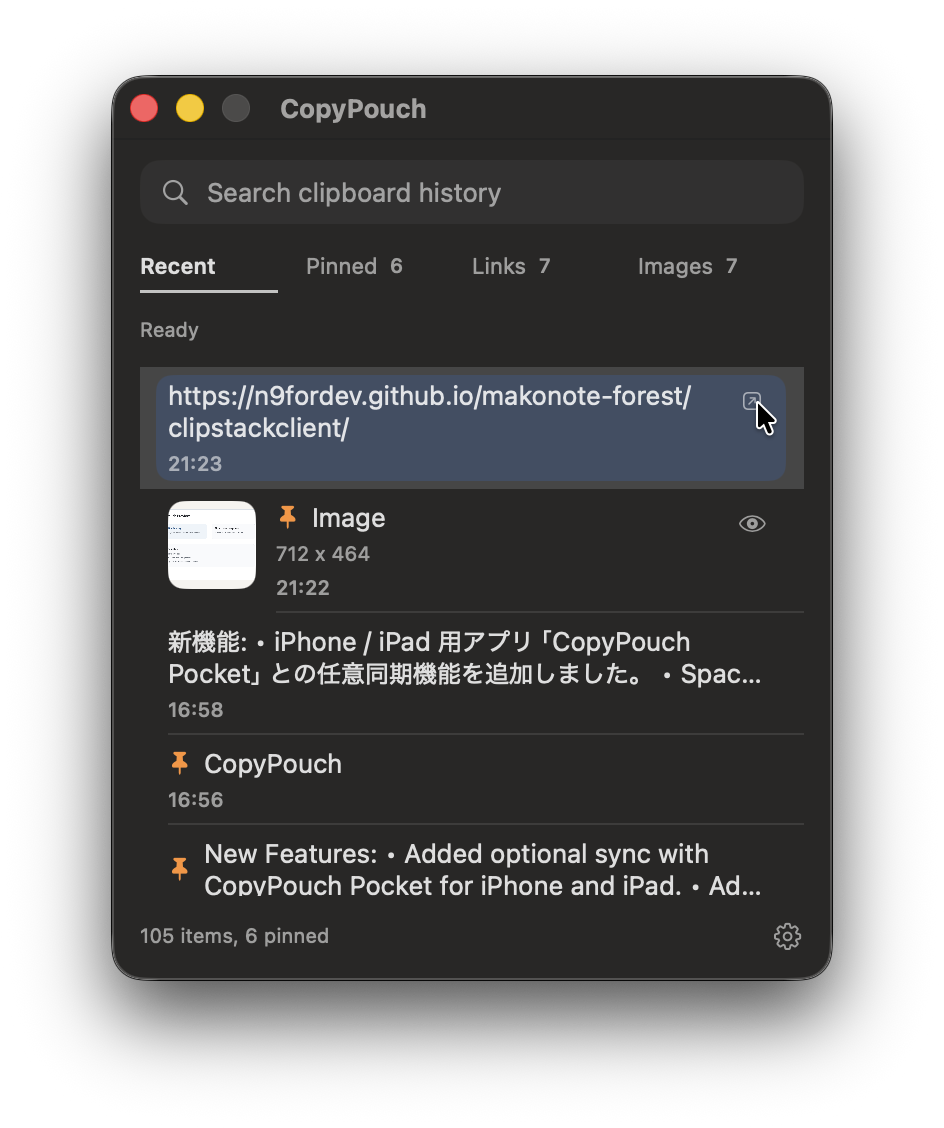
- Recent: shows recent clipboard history
- Pinned: shows only pinned items
- Links: shows only items recognized as URLs
- Images: shows only imported image items
Search
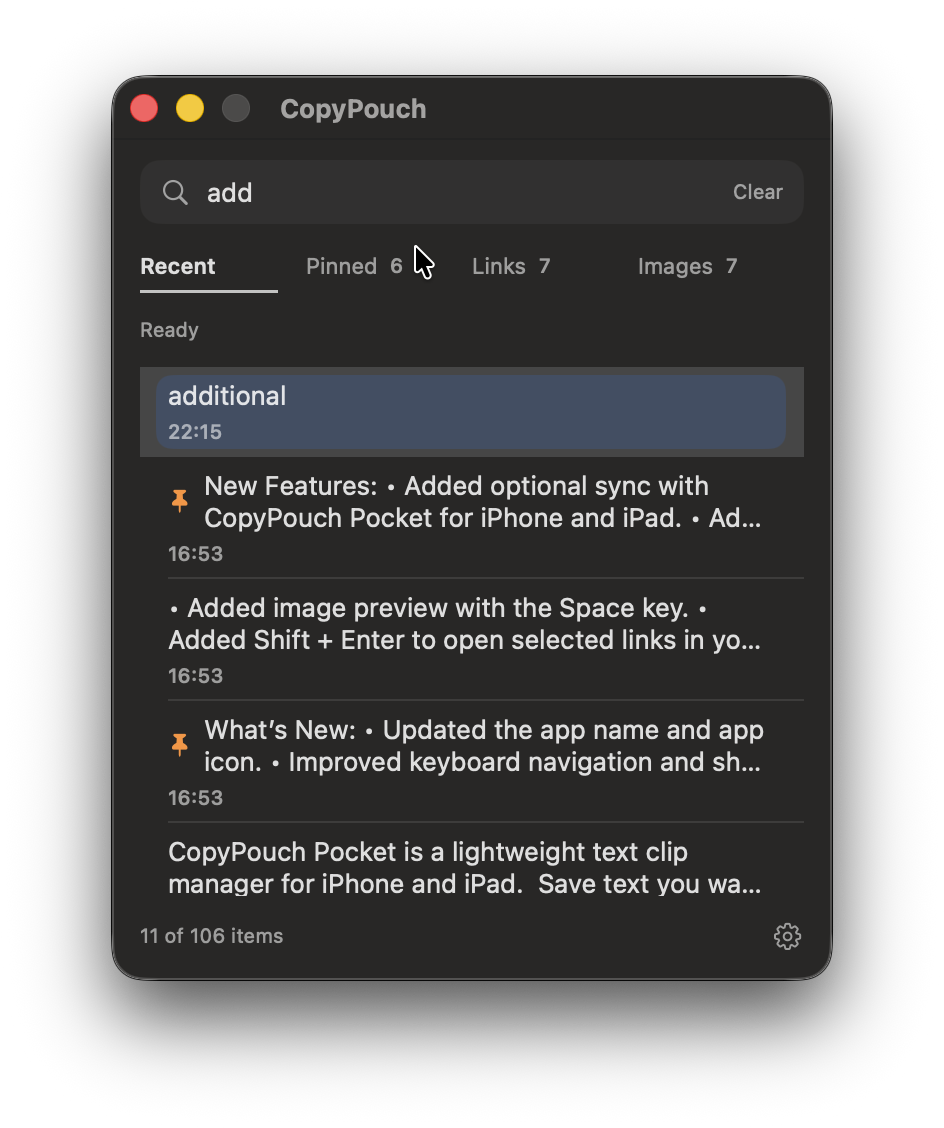
The search field filters only the currently visible tab. For example, searching while the Links tab is active narrows down links only.
Pinning and deleting items
You can keep important items pinned and remove items you no longer need directly from the list.
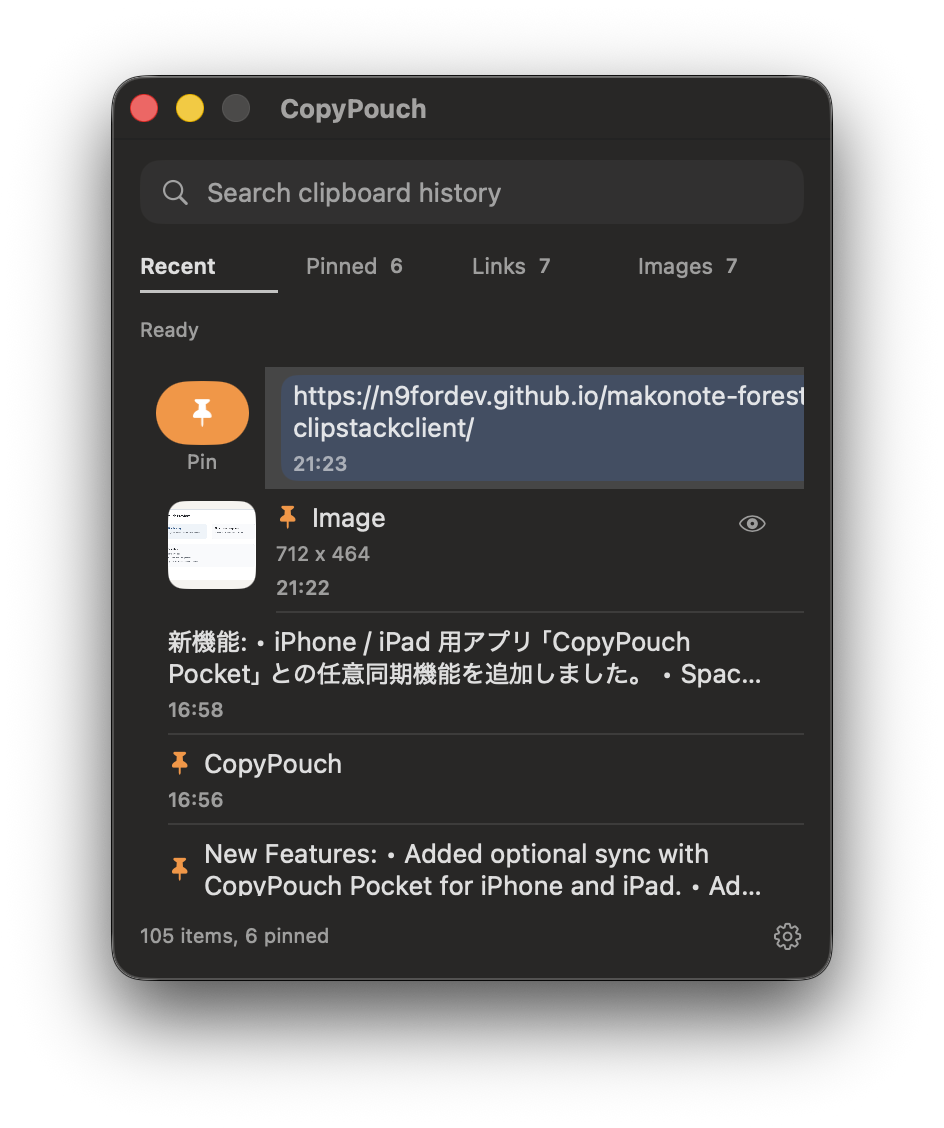
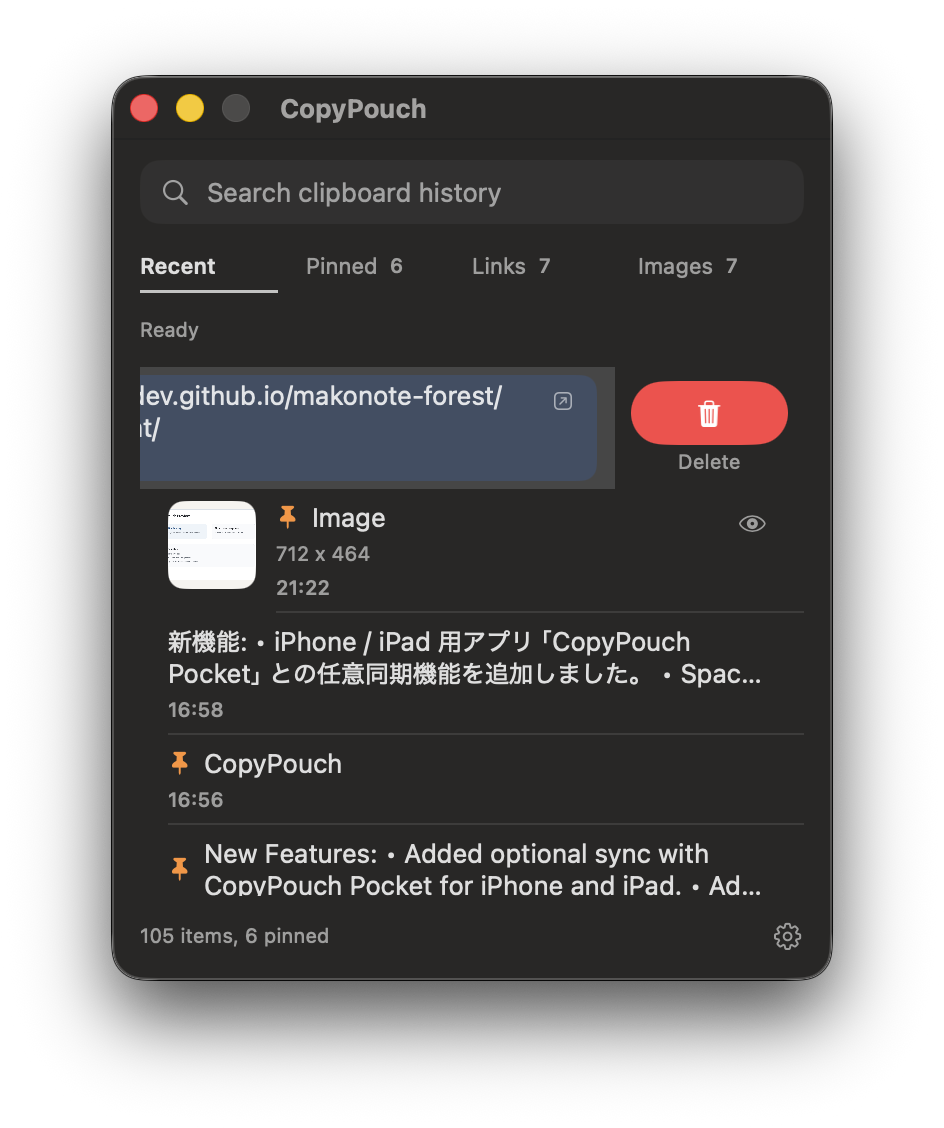
Swipe right to Pin or Unpin an item, and swipe left to Delete it.
If swipe gestures are not convenient, you can also use the context menu by right-clicking an item.
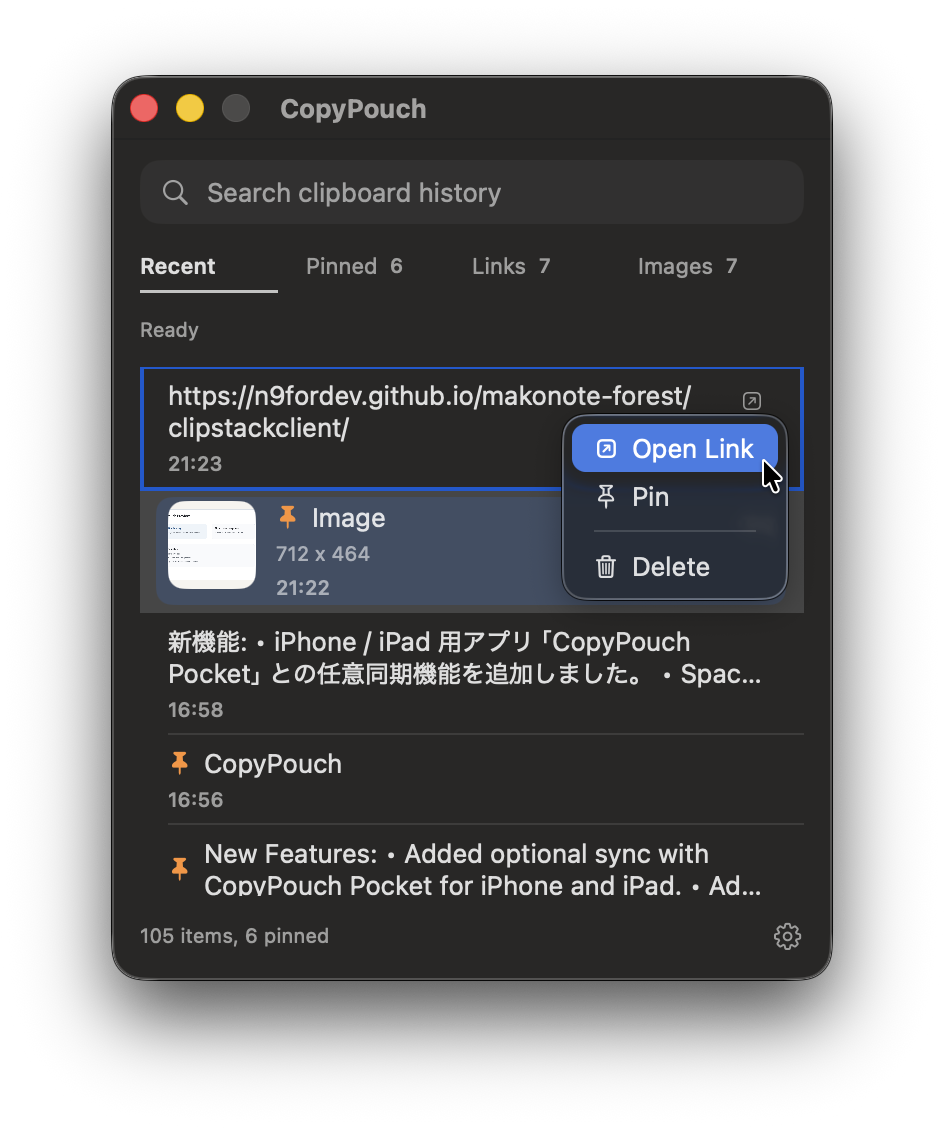
Image preview
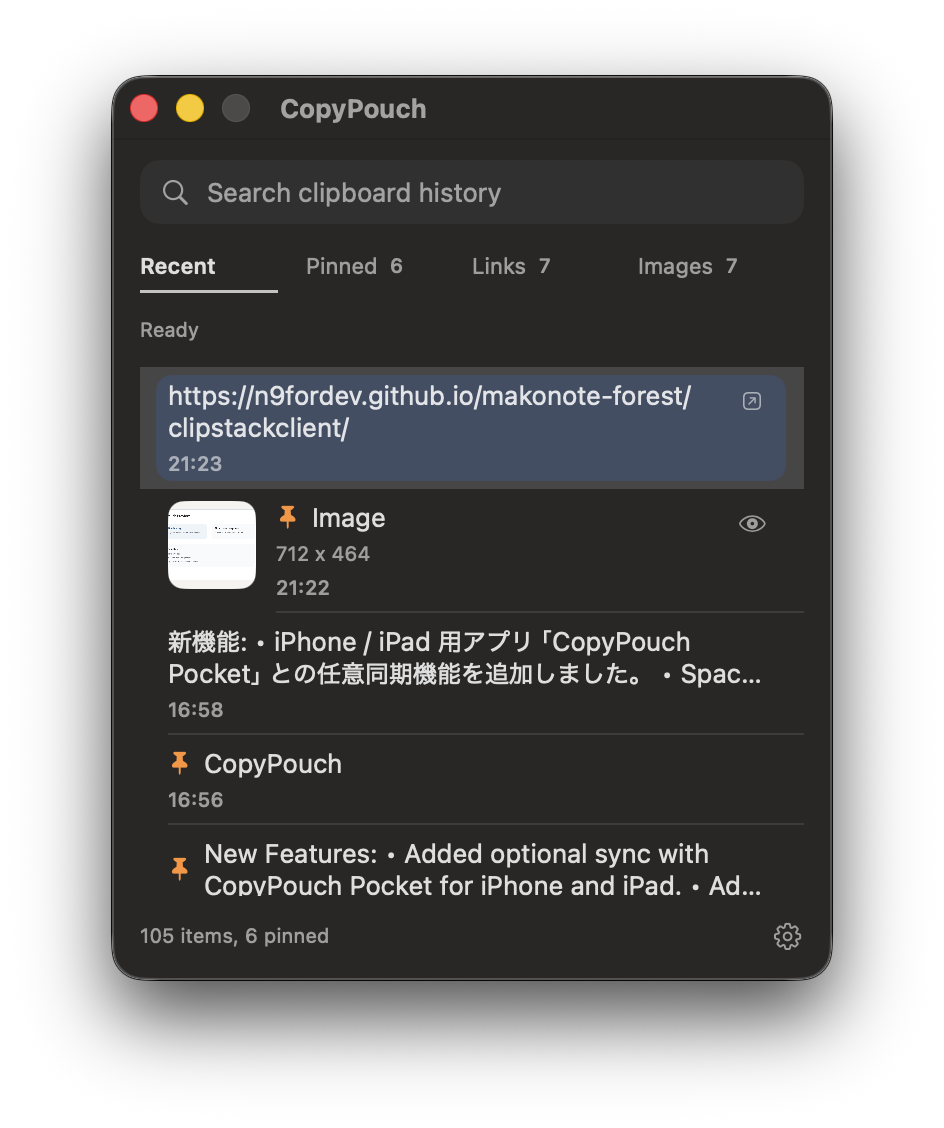
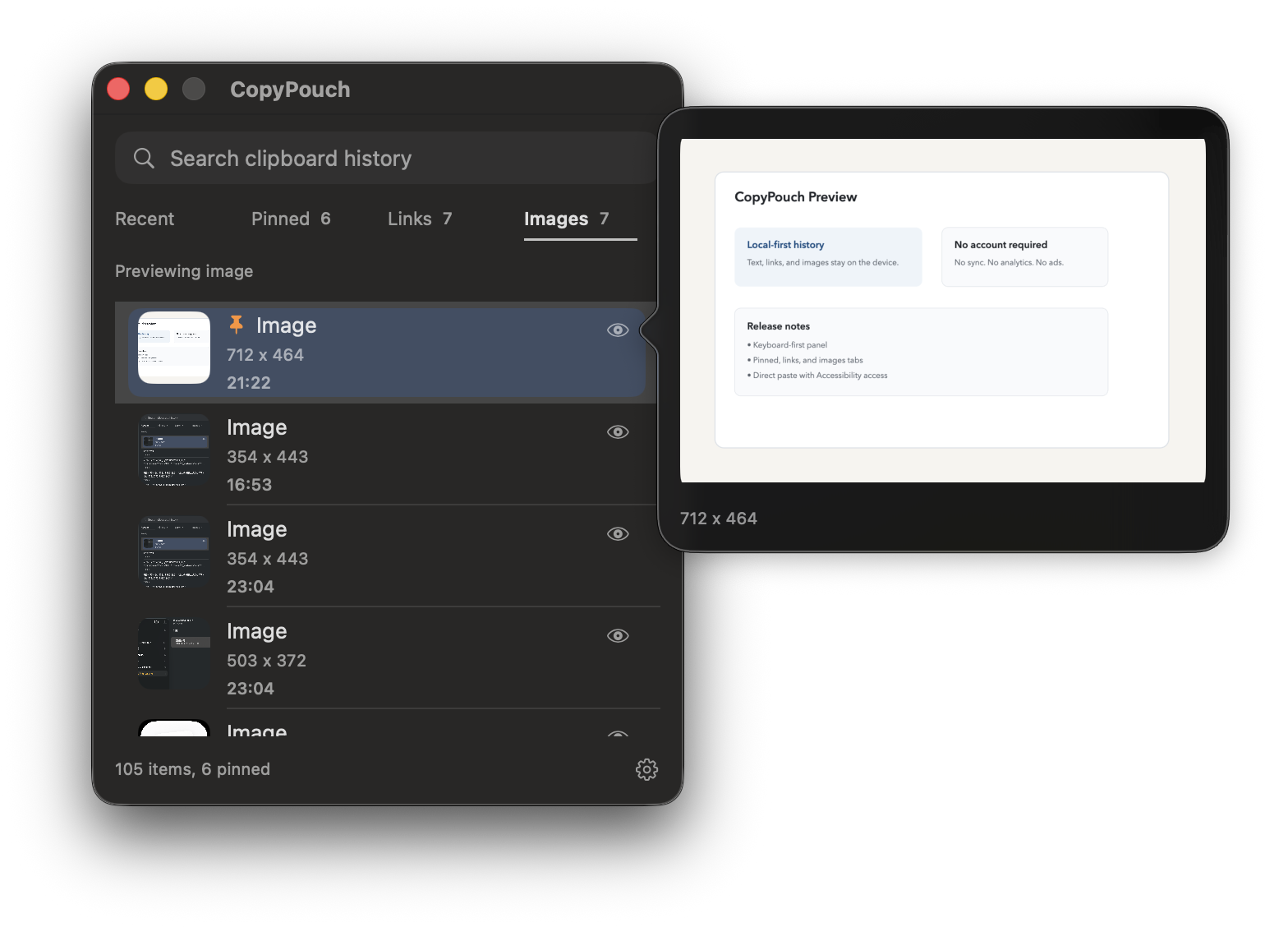
Hover over the preview icon on an image item to open a quick preview.
This is useful when you want to confirm the image before reusing it.
You can also hold Space while an image item is selected to show
the same preview from the keyboard.
Opening links
Items recognized as URLs can be opened in your browser from the trailing icon or the context menu.
This is useful when you want to check a link immediately instead of pasting it first.
From the keyboard, select a link item and press Shift + Enter.
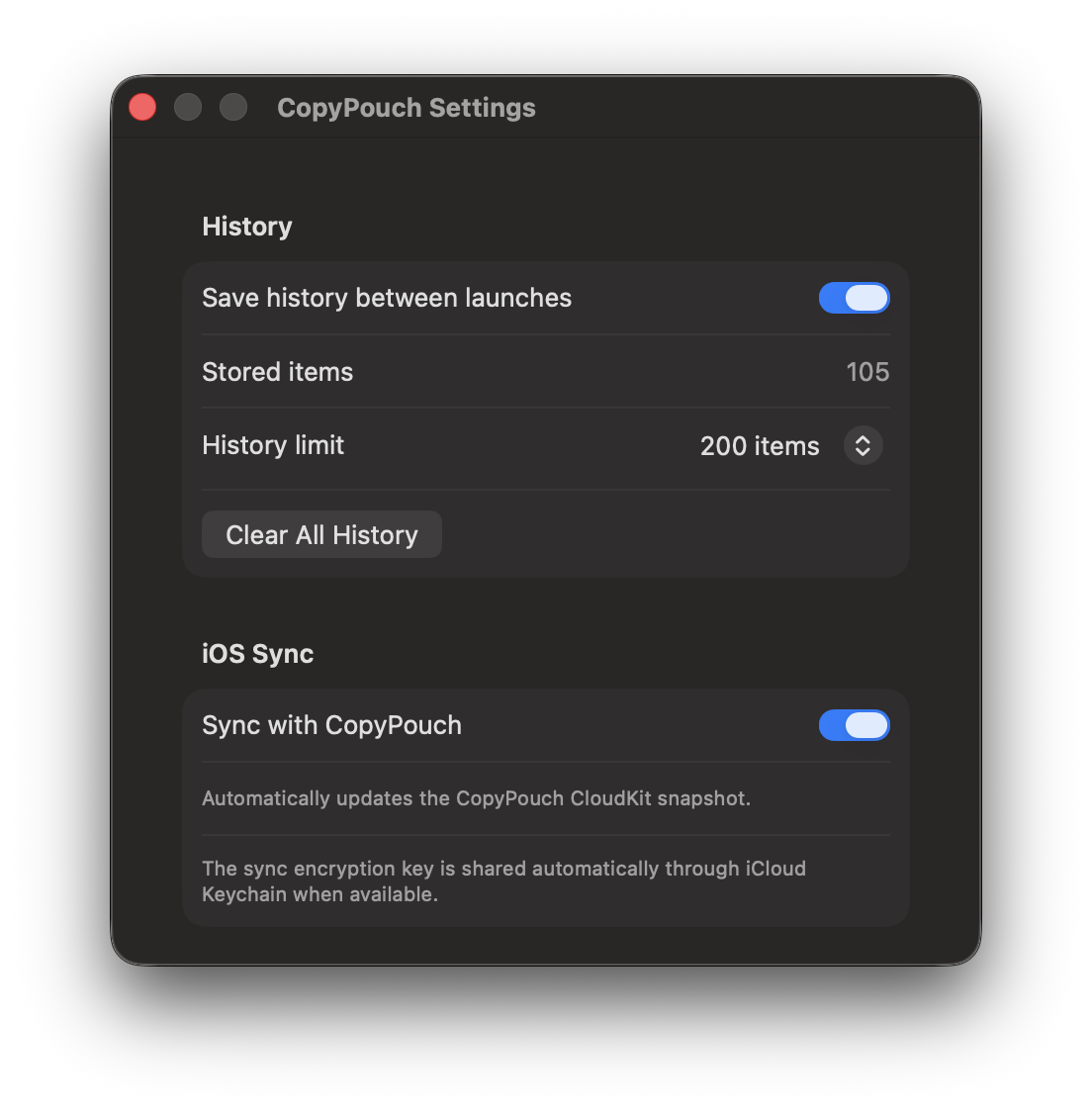
What you can change in Settings
- Whether history is saved between launches
- History limit presets (20 / 50 / 100 / 200)
- Global hotkey presets
- Whether CopyPouch Pocket is updated automatically
- Whether CopyPouch Pocket sync is enabled
- Clearing all saved history
CopyPouch Pocket sync
CopyPouch can optionally upload encrypted text history to CloudKit so CopyPouch Pocket on iPhone or iPad can read it.
In Settings, turn on Sync with CopyPouch Pocket to enable automatic updates whenever history changes.